For all it’s many advantages, sometimes it’s the little things that CSS layout makes difficult that really get to
you.
A logical and structured layout is the best way to go. Not only because your layout varies between browsers, but also
because CSS has a lot of ways to position every element you have. Today we wanted to share with you some quick CSS code
snippets on how to avoid easy pitfalls when creating your CSS layout, some of the following snippets are cross browsers
while others are not. We thought we could share them only if you are looking for a quick fix.
This is the first part in this series as there are SO MANY good tricks out there and if you see an easier or better
methods, then post a comment below or email me so we add it in this series.
1. Hide text with text indent
h1 {
text-indent:-9999px;/*Hide Text, keep for SEO*/
margin:0 auto;
width:948px;
background:transparent url("images/header.jpg") no-repeat scroll;
}
By Drew Douglass.
2. Cross Browser Minimum Height
#container { min-height:500px; } * html #container { height:500px; }
“Internet Explorer 6 is the only browser that recongizes the “* html _____” selector and thus is the only browser
to read the hard-set height. Since IE6 also stretches down despite the hard-set height property, you can view IE6’s idea
of “height” as a min-height. The only drawback to using this code is that it’s not valid CSS.” by
href="http://davidwalsh.name/cross-browser-css-min-height">David Walsh
Another way to do this and make it valid CSS:
#container{
height:auto !important;/*all browsers except ie6 will respect the !important flag*/
min-height:500px;
height:500px;/*Should have the same value as the min height above*/
}
3. Highlight links that open in a new window
Here’s the CSS to highlight links that open in a new window.
a[target="_blank"]:before,
a[target="new"]:before {
margin:0 5px 0 0;
padding:1px;
outline:1px solid #333;
color:#333;
background:#ff9;
font:12px "Zapf Dingbats";
content: "\279C";
 }
4. Highlight links to PDF and Word files
Here’s the CSSto highlight links that open PDF or Word files without informing the user.
a[href$="pdf"]:after,
a[href$="doc"]:after {
margin:0 0 0 5px;
font:bold 12px "Lucida Grande";
content: " (PDF)";
}
a[href$=".doc"]:after {content: " (DOC)";}
“This will insert either (PDF) or (DOC) after links with an href attribute value that ends in pdf or doc.” by
href="http://www.456bereastreet.com/archive/200812/reveal_new_window_links_and_links_to_non- html_files_with_a_user_stylesheet/">Roger Johansson
5. The order of link pseudo-classes
Eric Meyer
explains why the order matters. So in case you came across the “link-visited-hover-active” (LVHA) rule. This holds that
the four link states should always be listed in that order, like so:
a:link {color: blue;}
a:visited {color: purple;}
a:hover {color: red;}
a:active {color: yellow;}
6. Simple Clearing of floats
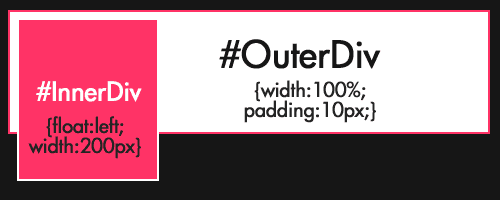
One of the simplest and most common layout structures involves the placing of a small, set-width DIV ‘#inner’ within a
larger wrapping DIV ‘#outer’ that contains the remaining content. If ‘#inner’ grows taller than it’s wrapping parent, it
breaks through the bottom edge of ‘#outer’. As we can’t always control the amount of content in these DIVs, it certainly
presents a problem. The markup would be something like
<div id="outer">
        <div id="inner"> <h2>A Column</h2> </div>
        <h1>Main Content</h1>
        <p>Lorem ipsum</p>
</div>
The CSS will look like this
#inner{
width:26%;
float:left;
}
#outer{
width:100%;
}
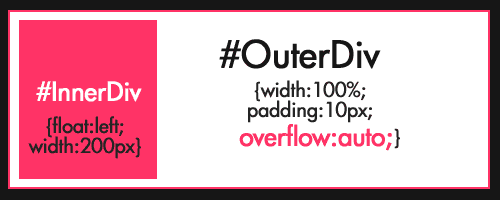
A simple trick to fix this issue is
by adding ‘overflow:auto’ to the outer DIV
7. Creating a Page Break
Snook share a little CSS trick for those who
run blogs: force a page break before the comments so the users have the option to print the article with or without the
comments. If they print just the article then it can stand alone in a nice clean package.
#comments {page-break-before:always;}
8. Style Your Ordered List
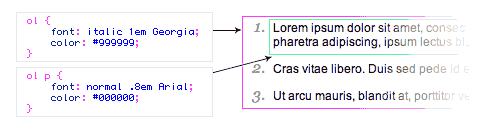
By default, most browsers display the ordered list numbers same font style as the body text. Here is a quick CSS tip on
how you can use the ordered list (ol) and paragraph (p) element to design a stylish numbered list. By
href="http://www.webdesignerwall.com/tutorials/style-your-ordered-list/">Nick La
The markup would be:
<ol>
  <li>
    <p>This is line one</p>
  </li>
  <li>
    <p>Here is line two</p>
  </li>
  <li>
    <p>And last line</p>
  </li>
</ol>
The CSS to style it:
ol {
  font: italic 1em Georgia, Times, serif;
  color: #999999;
}
ol p {
  font: normal .8em Arial, Helvetica, sans-serif;
  color: #000000;
}
9. Create Resizable Images With CSS
“I’m a big fan of layouts that still work if a user increases their browser’s text size. However, I was wondering what
it would be like if any images resized along with the text rather than staying constant in size. Would everything seem
more in proportion?” by Christian Watson. To do this, we
need to use a large image and wrap it in a div which was sized in ems. This enables it to be centered within the div
Here’s the HTML:
<div class="resize2"><img src="image.jpg" alt="" /></div>
And the CSS:
.resize2 {
  border: 3px double #333;
  float: left;
  height: 12em;
  margin: .2em 1em 1em 0;
  overflow: hidden;
  width: 12em;
}
.resize2 img {
  margin: -220px 0 0 -210px;
  padding: 6em 0 0 6em;
}
10. Create a Block Hover Effect for a List of Links
The “block hover” effect for lists of links gives the design an elegant effect. we see this all the time now.
“Because IE only supports the :hover element for links, the link anchor needs to go around all the text in the list item.
Therefore, we need to provide some additional hooks in order to style the content. We do this through the use of
<em> and <span> tags.” by Christian
Watson.
Here’s the HTML:
<div id="links">
    <ul>
      <li><a href="#" title="Text">Link Heading One
        <em>Description of link.</em>
        <span>Date posted</span></a></li>
      <li><a href="#" title="Text">Link Heading One
        <em>Description of link.</em>
        <span>Date posted</span></a></li>
    </ul>
  </div>
And now the CSS. In order for the block hover effect to work properly in IE, we need to make the width of the link the
same as that of the list item. Otherwise the hover effect will only display when you mouse over the text within the list
item.
#links ul {
        list-style-type: none;
        width: 400px;
}
#links li {
        border: 1px dotted #999;
        border-width: 1px 0;
        margin: 5px 0;
}
#links li a {
        color: #990000;
        display: block;
        font: bold 120% Arial, Helvetica, sans-serif;
        padding: 5px;
        text-decoration: none;
}
 * html #links li a {  /* make hover effect work in IE */
	width: 400px;
}
#links li a:hover {
        background: #ffffcc;
}
#links a em {
        color: #333;
        display: block;
        font: normal 85% Verdana, Helvetica, sans-serif;
        line-height: 125%;
}
#links a span {
        color: #125F15;
        font: normal 70% Verdana, Helvetica, sans-serif;
        line-height: 150%;
}
11. Eric Meyer’s Reset CSS
The goal of a reset stylesheet is to reduce browser inconsistencies in things like default line heights, margins and
font sizes of headings, and so on.
/* v1.0 | 20080212 */
html, body, div, span, applet, object, iframe,
h1, h2, h3, h4, h5, h6, p, blockquote, pre,
a, abbr, acronym, address, big, cite, code,
del, dfn, em, font, img, ins, kbd, q, s, samp,
small, strike, strong, sub, sup, tt, var,
b, u, i, center,
dl, dt, dd, ol, ul, li,
fieldset, form, label, legend,
table, caption, tbody, tfoot, thead, tr, th, td {
	margin: 0;
	padding: 0;
	border: 0;
	outline: 0;
	font-size: 100%;
	vertical-align: baseline;
	background: transparent;
}
body {
	line-height: 1;
}
ol, ul {
	list-style: none;
}
blockquote, q {
	quotes: none;
}
blockquote:before, blockquote:after,
q:before, q:after {
	content: '';
	content: none;
}
/* remember to define focus styles! */
:focus {
	outline: 0;
}
/* remember to highlight inserts somehow! */
ins {
	text-decoration: none;
}
del {
	text-decoration: line-through;
}
/* tables still need 'cellspacing="0"' in the markup */
table {
	border-collapse: collapse;
	border-spacing: 0;
}
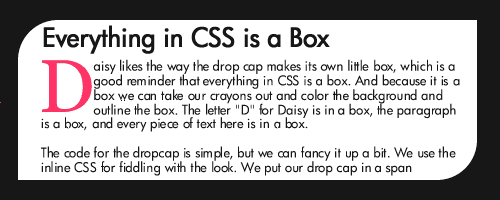
12. DROP CAPS
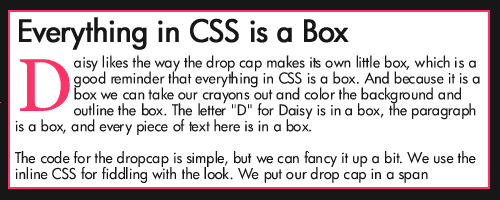
According to w3schools only font, color, background, margin, padding, border, float and some other properties can be
applied to the first letter. Still you can make a nice drop cap with CSS
p:first-letter{
display:block;
margin:5px 0 0 5px;
float:left;
color:#FF3366;
font-size:60px;
font-family:Georgia;
}
13. CSS Transparency Settings for All Browsers
“Transparency is one of those weird things that is treated completely differently in all browsers. To cover all your
bases, you need four separate CSS statements. Fortunately they don’t interfere with each other really, so using them all
every time you wish to add transparency is no big hassle and worry-free.” by Chris Coyier.
Transparency is set to 50%
.transparent_class {
	filter:alpha(opacity=50);
	-moz-opacity:0.5;
	-khtml-opacity: 0.5;
	opacity: 0.5;
}
14. Rounded Corners with Border-Radius
CSS3 specification offered us Rounded Corners with Border-Radius, which is currently supported by few browsers. Here is
a snippet:
.container{
    background-color: #fff;
    margin: 10px;
    padding: 10px;
    -moz-border-radius-topleft: 20px;
    -webkit-border-top-left-radius: 20px;
    -moz-border-radius-bottomright: 20px;
    -webkit-border-bottom-right-radius: 20px;
}
14.2 Cross Browser rounded Corner
“Simplest way is to use a giant gif, then I’ll markup my box”-
href="http://www.askthecssguy.com/2007/11/mike_asks_the_css_guy_for_reco_1.html">Askthecssguy
<div class="roundBox">
  <p>beautifully-encapsulated paragraph</p>
  <div class="boxBottom"></div>
</div>
CSS would be:
.roundBox {
  background:transparent url(roundBox.gif) no-repeat top left;
  width:340px;
  padding:20px;
}
.roundBox .boxBottom {
  background:white url(roundBox.gif) no-repeat bottom left;
  font-size:1px;
  line-height:1px;
  height:14px;
  margin:0 -20px -20px -20px;
}
15. HangTab. Check out Panic’s website for their software Coda.
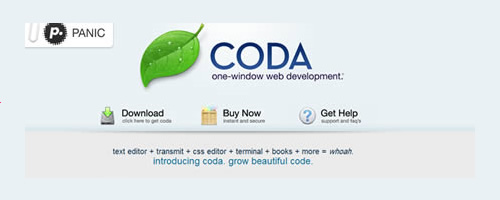
Create a Sticky Tag from the Edge of the Browser Window (Even with Centered Content).
#hang_tab {
position: absolute;
top: 7px;
left: 0px;
width: 157px;
height: 93px;
}
Jan 28, 2025 @ 00:22:34
Well done, amazing codesnippets! Most of them are not cross-browser compatible (pseudo classes etc.) and some are not CSS 2.1 valid (Opacity thingie), but it is still fun to play around with .
.
Keep up the good work!
Jan 28, 2025 @ 02:08:12
Nice list.
For the #12. DROP CAPS item, you don’t need “display: block”. Floating an element transforms it automatically in a block.
Jan 28, 2025 @ 02:38:43
Just remember that when using the “Hide text with text indent” trick that if your users have images turned off they’ll get nothing.
Jan 28, 2025 @ 04:21:38
Great resource! Now I can replace a few of my bookmarks with just 1.
Jan 28, 2025 @ 05:12:28
great css tutorials, i’m happy to see h1 tag in logo.
Jan 28, 2025 @ 06:14:58
This is a fantastic article. Very clearly written, thanks.
Jan 28, 2025 @ 07:04:39
The trick to getting around the text-indent focus box in FF and the images off problem is by not text-indenting your headline. Instead, give your headline a position: relative, then inside of it put a span with the background of the image you want to use, and position it absolutely. Because it’s absolute, it is pulled from the flow of your document and sits on top of your text. Images off, no problem, the text shows through.
Jan 28, 2025 @ 07:21:30
Great list of code snippets! Will add it to my “list of lists” on my blog shortly!
Jan 28, 2025 @ 07:44:58
nice tips..thank u..
Jan 28, 2025 @ 07:52:51
For the link order, just remember the phrase “LoVe / HAte” to get the L, V, H, A order right.
Jan 28, 2025 @ 07:52:51
Do people really surf the internet with images turned off? I mean I’m sure they do, but I don’t see it happening with someone who is really looking to get the full potential from the internet.
Just seems kind of…boring. hah.
That said, I am now going to change how I write my next web site CSS header images. Thank you Jason.
Mar 23, 2025 @ 03:06:40
“Do people really surf the internet with images turned off?”
Yes, blind people generally do. In any way, their readers will rely on there being an alt-text or something else to interpret what they are missing.
Jan 28, 2025 @ 07:55:34
I’m affraid p:first-letter (#12) won’t work like that. You’d need to combine it with the :first-child, but most of the time that won’t work.
Jan 28, 2025 @ 08:02:23
Great list!
Thanks!
Jan 28, 2025 @ 08:11:28
Very nice list, thanks for sharing!
Jan 28, 2025 @ 08:19:56
Yeah, great tips to help break old habits.
Jan 28, 2025 @ 08:31:38
“Do people really surf the internet with images turned off?”
More to the point, do people really surf the internet with images turned off and a serious expectation that the appearance of websites they visit will be anything other than, ahem, unpredictable?
I do believe in the degradable, accessible web, but I figure if someone is after a real lo-fi experience they will (can/should) disable CSS, in which case they lose the text-indent trickery too, so there’s no problem. If someone really wants the obscure combination of CSS/JS on but images off, I kinda file that under “well you should expect stuff to look a bit”.
Jan 28, 2025 @ 08:33:17
Great tips. I don’t know why #6 never occurred to me before… Learn something new every day.
The List of Lists « The Beginning Designer
Jan 28, 2025 @ 08:49:04
[...] DevSnippets - CSS Code Snippets: 15 Wicked Tricks [...]
» 15 trucchetti con i CSS
Jan 28, 2025 @ 09:09:52
[...] fonte: DevSnippets [...]
Jan 28, 2025 @ 10:54:40
Great Article.. I do like to make valid css but sometimes you gotta do what you gotta do.
I want to share another one..
for IE7 I use _style: value; to give styles to that browser only and the like you said, * is for IE6.
Jan 28, 2025 @ 11:34:04
Thanks to everyone for your great tips and feedback.
@Eddie Potros:
I used to use the underscore & asterisk hack before but since they are invalid i do my best to stay away from them and accomplish the exact same thing by using conditionals.
@Justin, @Steve:
I totally agree with your point, people should expect less when they turn images off.
But, it’s our job to still allow the users see everything lined up nicely when they turn their CSS, js & images off.
This post was meant to share some tips for getting things done quickly and smoothly.
Jan 28, 2025 @ 11:42:22
The first code is the exact same code snippet I had in my ThemeForest article I wrote long before this. Not accusing anyone, but it is obvious you just copied and pasted it. See for yourself http://blog.themeforest.net/general/15-css-tricks-that-must-be-learned/
Jan 28, 2025 @ 11:54:46
Great Collection! Accessible instructions for fast implementations. Love it!
Jan 28, 2025 @ 11:55:21
Very nice list.
Jan 28, 2025 @ 12:10:05
#6 shows scrollbars for me in FF3. If set to overflow is set to visible instead of auto it works fine.
Jan 28, 2025 @ 12:44:53
Great list and thanks for including two of my examples - #9 & #10.
By the way, my name is “Christian Watson” and not “Andrew Rickmann,” although it is kind of a cool sounding name…
Jan 28, 2025 @ 12:46:16
If pixel perfection isn’t required, I’ve adopted display:inline-block for layouts instead of floats. If there is one advantage to inline-block over float is that I never have to deal with IE6 issues anymore.
I explained all the benefits and issues of inline-block here in my post.
pligg.com
Jan 28, 2025 @ 12:54:16
CSS Code Snippets : 15 Wicked Tricks…
For all it’s many advantages, sometimes it’s the little things that CSS layout makes difficult that really get to you.
A logical and structured layout is the best way to go. Not only because your layout varies between browsers, but also because CS…
links for 2025-01-28 « Minesa IT
Jan 28, 2025 @ 13:00:56
[...] CSS Code Snippets : 15 Wicked Tricks | DevSnippets (tags: webdesign webdev resources design tips css tricks code) [...]
Jan 28, 2025 @ 13:11:25
Very awesome! Thanks!
Jan 28, 2025 @ 13:19:59
@Drew:
I always add links and credits to the source not sure where your link gone. May be i just forgot, or didn’t have enough coffee.
Links and credits are there now.
@Christian Watson:
That’s a big mistake, it seems i copied another person’s name instead of yours. Sorry for that, just fixed typo’s’
Jan 28, 2025 @ 13:31:13
Great work. Awesome stuff.
With regards to the text-indent issue mentioned in #1, keep in mind that “[t]he text-indent indents the first line of text in an element.”
In other words, this will work fine, as long as you keep your text reasonably short (or accommodate the container’s width). See for yourself at http://www.w3schools.com/Css/tryit.asp?filename=trycss_text-indent.
Thanks again.
Jan 28, 2025 @ 13:59:26
@Noura
I appreciate the prompt response and credit. No worries at all
Best Regards.
Jan 28, 2025 @ 14:02:55
Excellent summary
Jan 28, 2025 @ 14:20:52
What a great article! I knew a lot of things there, but it’s a good reminder. Thanks a bunch.
Keep up the good work.
David
Jan 28, 2025 @ 14:43:34
I don’t hold any kind of SEO title per say, but I used to do hidden layers of text back in the days, and from SEO perspective do you think “text indent” will be considered “Black Hat” SEO?
CSS Code Snippets : 15 Wicked Tricks - Kreativuse™ - Creative Resources and Inspirations
Jan 28, 2025 @ 14:46:53
[...] for CSS that you might want to look at. They will save your time working on the CSS later on. Read more about it. 29 Jan 2025 | compilation, news | Comment (0) Vertical2262 = false; ShowAdHereBanner2262 = [...]
Jan 28, 2025 @ 15:09:52
well thanks again for the article. I used a couple today and Reset CSS is a MUST USE! Great stuff. Keep it up.
I love this site. RSS added.
Web Design Tricks by Chad Coleman
Jan 28, 2025 @ 16:27:25
[...] 15 Wicked CSS Tricks [...]
Jan 28, 2025 @ 17:47:30
(#6) Clearing Floats
Refrain using overflow:auto since scrollbars sometimes will show up.. instead use overflow: hidden.
Of course with any overflows you have to realize that you cannot have a set height.
And you should have a fix for IE6 =)
it would be #OuterDiv { _height:1%; }
and we’re done !
tutorialand.com
Jan 29, 2025 @ 03:11:54
15 Wicked Tricks…
This is the first part in this series as there are SO MANY good tricks out there and if you see an easier or better….
Jan 29, 2025 @ 03:12:54
Nice list!
Added to my site
Yvonne’s Stuff » Blog Archive » links for 2025-01-29
Jan 29, 2025 @ 05:30:29
[...] CSS Code Snippets : 15 Wicked Tricks | DevSnippets (tags: web webdesign css webdev tips development resources tutorials design code todo tricks webdevelopment snippets tip snippet stylesheets) [...]
Jan 29, 2025 @ 10:49:17
Awesome list!!!
Jan 29, 2025 @ 10:51:33
Great tips, I’m particularly interesting in the easy clearing float method.
I’m doing mobile development and adding an extra div to clear floats is reliable but adds a lot of extra markup. I’m curious to try this out on my mobile webpages and see whether it works out on Blackberries, iPhone, and Windows Mobile smartphones…
Jan 29, 2025 @ 11:33:29
That text indent trick seems a little risky to me. Even though it prob isn’t
Jan 30, 2025 @ 05:01:03
1. Hide text with text indent
1. Hide text with text indent
Another way:
1. h1 {
2. margin:0 auto;
3. width:0;
4. padding-left:948px;
5. overflow:hidden;
6. background:transparent url(“images/header.jpg”) no-repeat scroll;
7. }
But that is still usability-unfriendly.
Jan 30, 2025 @ 14:26:00
These tricks sometimes make a design great, valid or not, with IE6 still in the running, some of these are the only way. The hidden text-trick with text-indent would be a penalty of Google, i think, the black hat issue.
Great list.
Jan 31, 2025 @ 02:51:33
No penalty. Its normal image-replacement technique. With no CSS, text is visible (for user and robot too). Nothing wrong.
Feb 03, 2025 @ 09:42:01
excellent… nice lists … thanks for sharing..
Feb 05, 2025 @ 10:06:58
Nice post man, i can’t wait to see CSS3 works on all browser, it will make things easier
Feb 05, 2025 @ 13:05:05
Yeah, I agree with some previous comments, I like overflow:hidden; better than auto just so I know that no scroll bars will show if some weirdness happens. Also, worth mentioning that for overflow method to work like it’s suppose too, a width is needed. You have a width in your example, but never specifically called for it
Also, the link to transparency settings for all browsers article from Chris Coyier is broken.
Feb 07, 2025 @ 14:38:41
Cracking list! Thanks.
weekly (weekly) « Come Sit Awhile
Feb 08, 2025 @ 13:30:58
[...] CSS Code Snippets : 15 Wicked Tricks | DevSnippets [...]
Dagliga tips #01 | Webbrelaterat
Mar 03, 2025 @ 09:41:30
[...] 1. CSS Code Snippets : 15 Wicked Tricks [...]
Mar 10, 2025 @ 08:00:31
I always use overflow:hidden; to clear floats. I’m gonna try out auto now though. Thanks for the tips!
Mar 25, 2025 @ 02:16:57
Nice list of tricks!! i Like No.14, I’m also curious to Lisa’s question, Do people surf the web with images off? I don’t see the point of that, unless there on a low bandwidth or slow connection!
Sacima鲨鳍马工作室 » Blog Archive » Useful CSS Snippets for Your Coding Arsenal
Jan 30, 2025 @ 10:01:05
[...] 19. Highlight links that open in a new window [...]
常用的CSS片段 | Code,Please
Feb 24, 2025 @ 08:10:44
[...] 15. 突出在新窗口中打开的链接 [...]
Mar 14, 2025 @ 23:23:06
It’s nice to see that I’m using most of these already on many projects! Good list!
CSS Snippets for Your Coding | prosoxi.com
Apr 05, 2025 @ 22:58:18
[...] 19. Highlight links that open in a new window [...]
Useful CSS Snippets for Your Coding Arsenal
Aug 23, 2025 @ 20:14:30
[...] 19. Highlight links that open in the new window [...]